

Send a form to Salesforce
This guide is for the Console admin who decides how a form’s answers become Salesforce records. Your Salesforce admin must first connect Salma, using Connect Salma to Salesforce.
Where mappings live
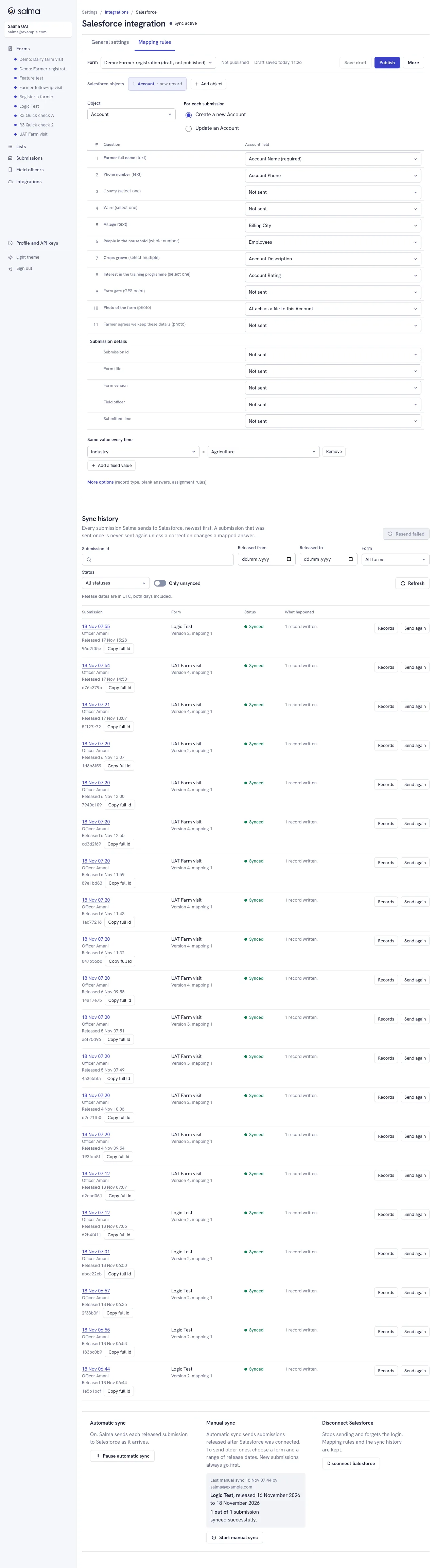
Section titled “Where mappings live”Open Integrations, then Salesforce, then the Mapping rules tab, and pick the form. The form must be published first.
Salesforce objects
Section titled “Salesforce objects”Under Salesforce objects, each object is one record that each submission creates or updates. Click Add object for more, for example an Account and then a Contact linked to it. Objects lower in the list can link to objects above them.
For each object:
- For each submission: create a new record, or update one found by a field. To update, choose the field to find the record by and the answer to match.
- If none is found: Create one, or Skip (the rest of the submission still goes ahead). Choose a field that really is unique; if more than one record matches, the submission fails.
- More options: record type, owner of new records, and whether a blank answer leaves the Salesforce value as it is.
Objects Salma creates records in need the Salma Id field (see the setup guide), so a resend never makes a second copy. When the record is found by a field that is an External ID in Salesforce, that field does the job instead.
Questions and fields
Section titled “Questions and fields”For each question, choose the Salesforce field it goes into, or Not sent. Salma only offers fields the answer fits: a choice into a picklist with matching values, a number into a number field, a GPS line or area only into a plain Long Text Area. You can also send a fixed value (Same value every time) or submission details such as the officer or the time.
Photos can go in as Salesforce Files on one of the records.
One submission can need at most 25 records. Count one record per object, and for an object made once per repeat entry, one per entry: a form with 30 plots mapped to one record each would be too large.
Publish
Section titled “Publish”Click Publish. Salma checks the mapping against your org first (objects and fields exist and the integration user can write them, required fields are mapped, choices match picklist values) and lists anything to fix. New submissions use the new version from then on.
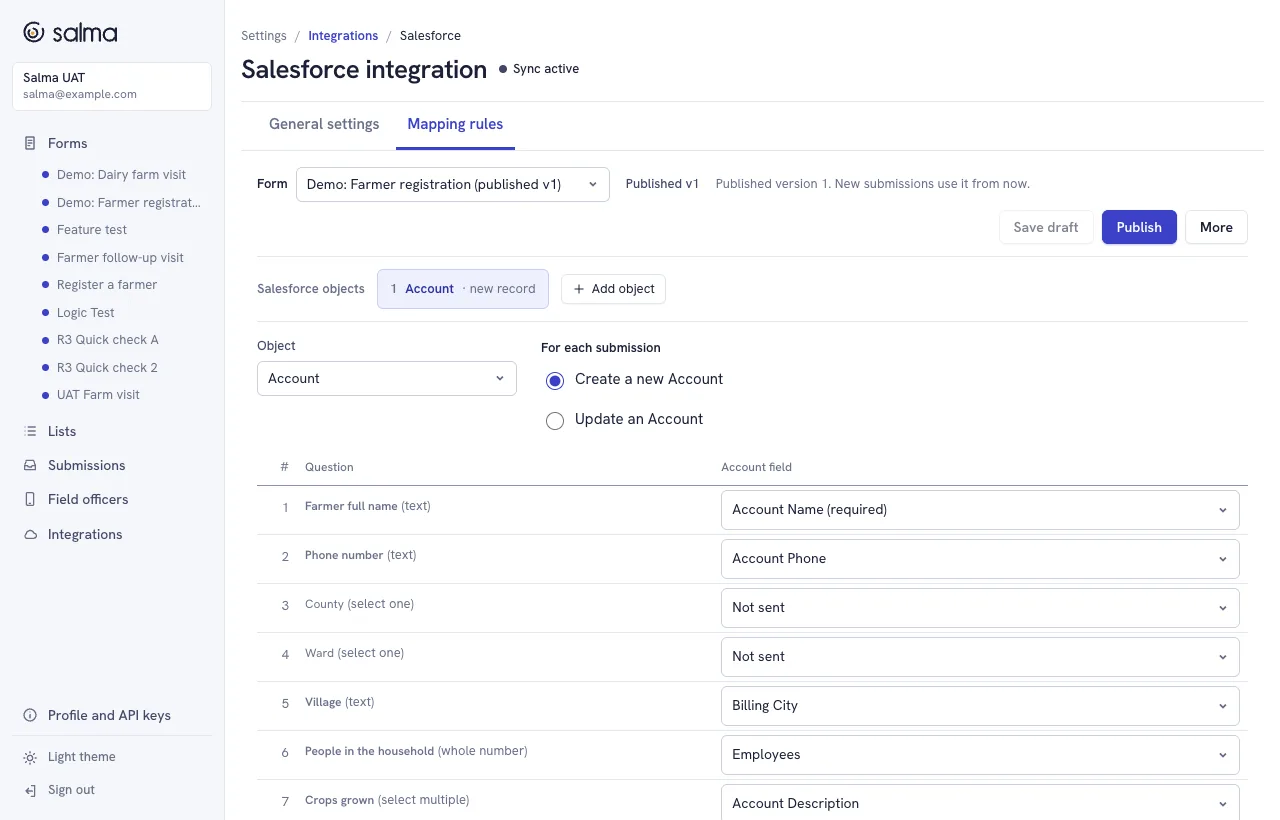
Each submission uses the mapping version that was live for its form version. A submission from a form version older than the first mapping uses the first mapping, and fails if that mapping needs a question the old form did not have.
Which submissions are sent
Section titled “Which submissions are sent”Salma sends each released submission once, automatically, after the mapping is published. To send older released submissions, use Manual sync on the Salesforce page: choose the form and the release dates. If a form holds visits until someone approves them, they are sent once approved.
Sync history
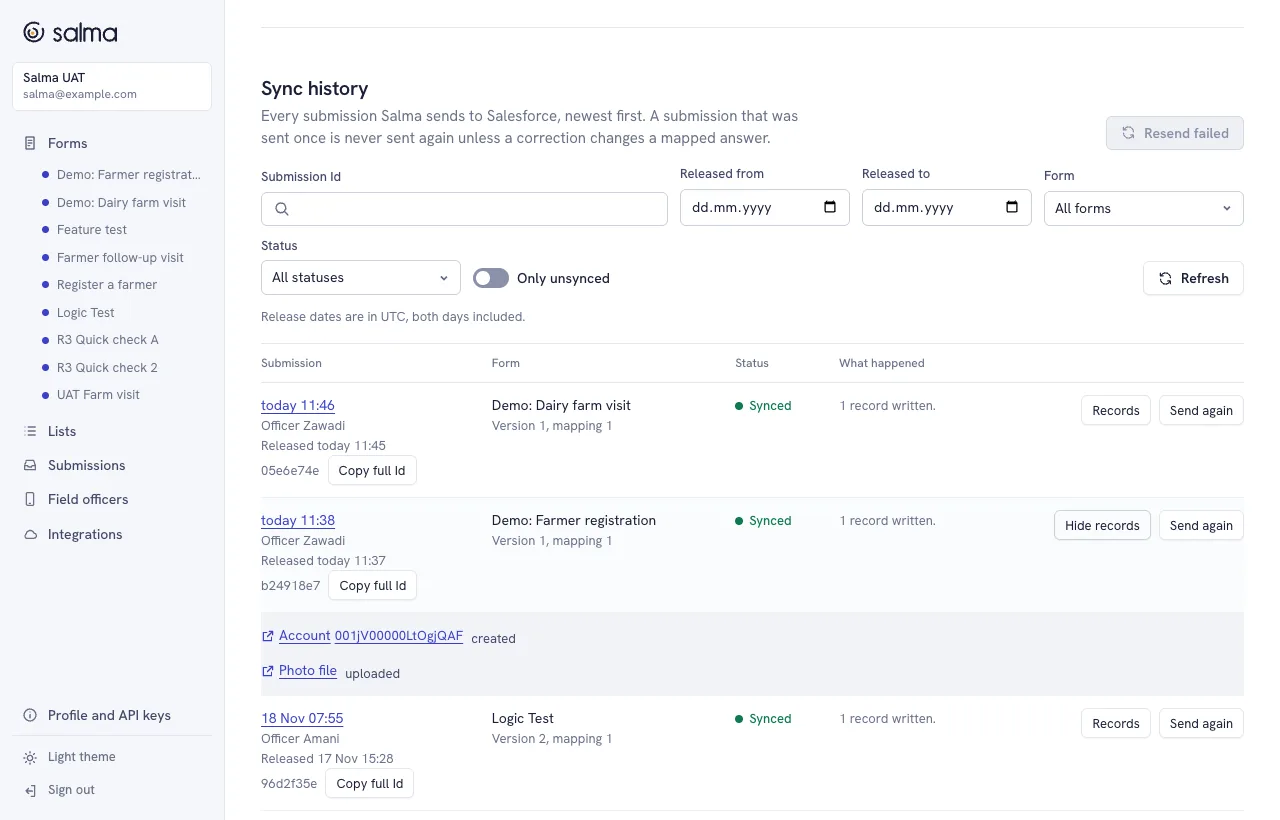
Section titled “Sync history”The Salesforce page lists every submission sent or waiting, newest first. Records shows each record written, with a link that opens it in Salesforce.
| Status | Meaning |
|---|---|
| Waiting | Queued, or retrying after a network problem. |
| Paused | Salesforce is disconnected, your org reached its API limit, or someone paused automatic sync. After a disconnect or a limit, sending resumes on its own once fixed; a manual pause needs Enable automatic sync. |
| Synced | All records written. |
| Synced, files pending | Records written, a photo is still uploading. |
| Failed | Salesforce refused something, such as a validation rule, a required field or missing access. The row shows the reason. Records written before the refusal may exist; Records shows which. Automatic retries stop: fix the cause, then Resend. |
| Too large | Needs more than 25 records. Nothing was sent. |
| Not sent | Deleted, withdrawn or rejected before the first send. |
Resend on a failed row, and Send again on a synced one, update the same records and do not create copies, as long as the mapping still has the same objects. If you remove an object and add it again, or change it between one record per submission and one per repeat entry, a resend creates new records and leaves the old ones; the editor warns about this before you publish. Resend failed retries every failed submission. Check the Salesforce page regularly: it shows failures and warns when the connection is disconnected.
Corrections and deletions
Section titled “Corrections and deletions”- When a submission that was already sent is corrected, Salma sends only the mapped values that changed, to the same records.
- Salma never deletes anything in Salesforce. A deleted submission leaves its records alone, or marks them if you set a field to mark on the object.
- Withdrawn or rejected submissions are not sent.