

Build a form
Create the form
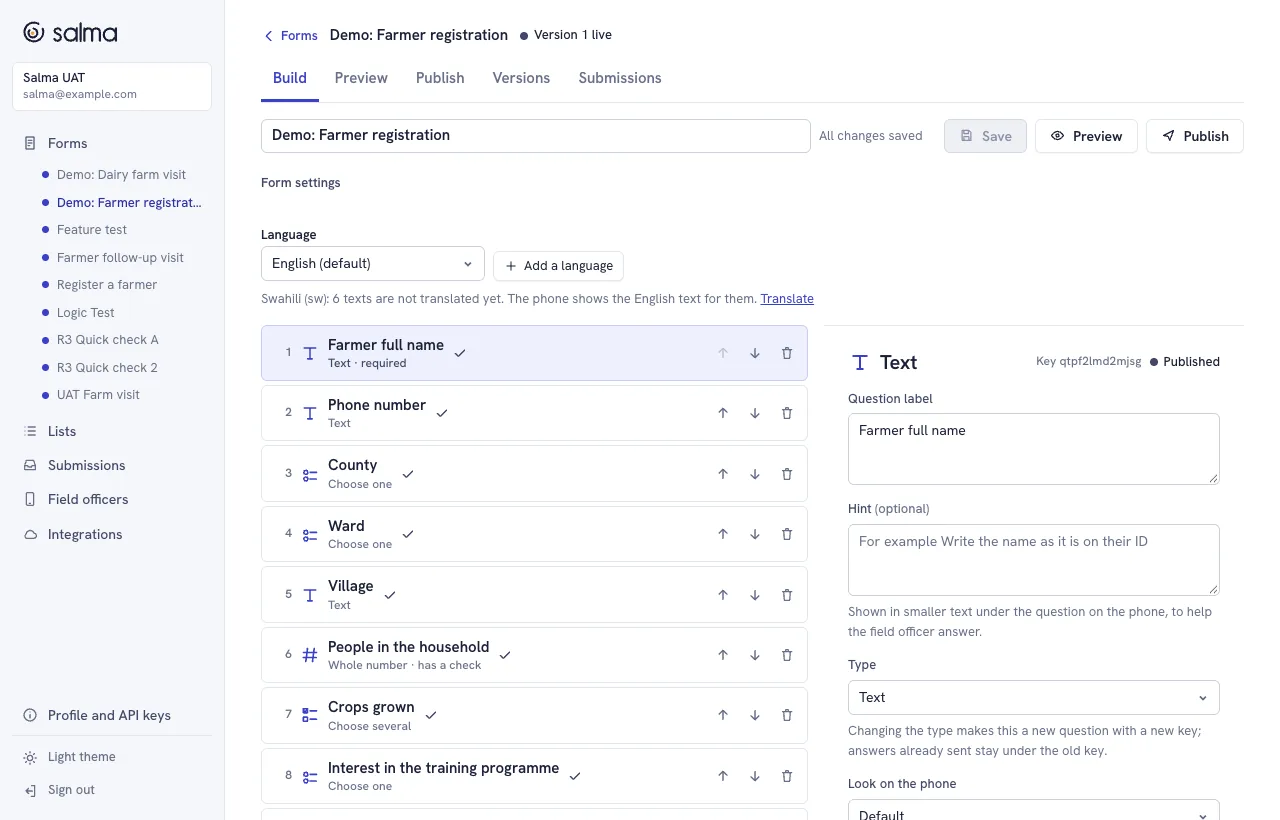
Section titled “Create the form”- Open Forms and click New form. Type a title.
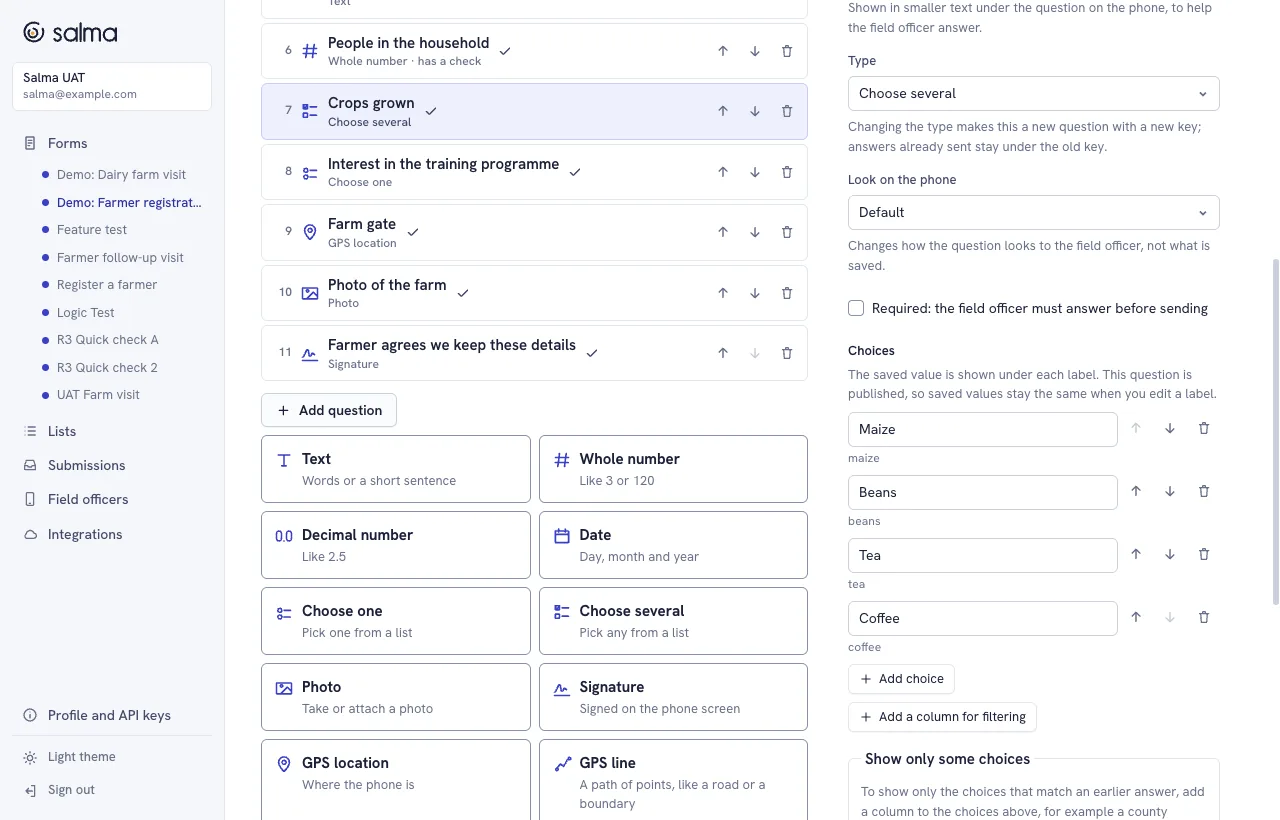
- Click Add question and pick a type. Each type says what it is for. See Question types.
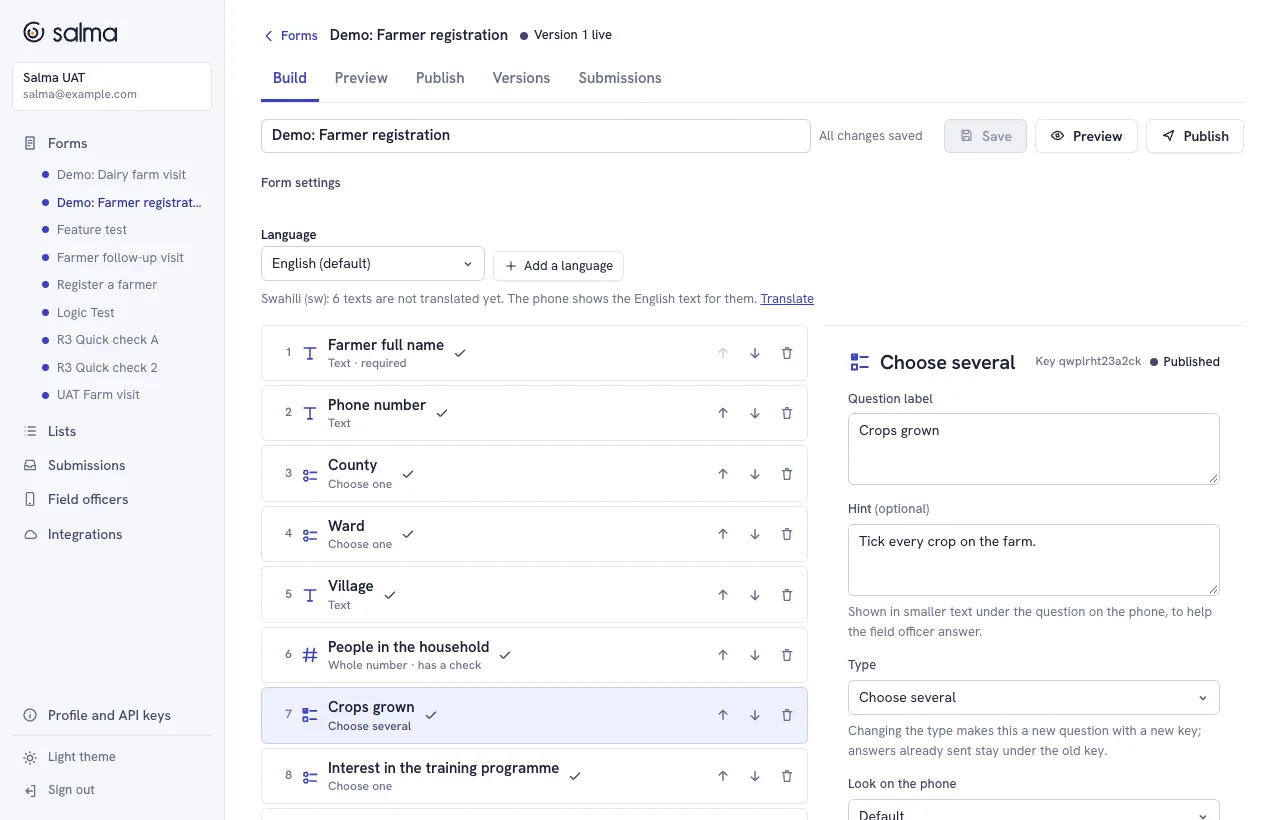
- Type the question label. The panel on the right holds the question’s settings: hint, required, how it looks on the phone, choices, rules and answer checks.
- Click Save. If anything needs fixing before you can publish, the builder lists it.
Questions with choices
Section titled “Questions with choices”For Choose one and Choose several, type each choice’s label. Salma gives each choice a saved value from its label (for example Sweet potato is saved as sweet_potato). The value is shown under the label. It is set when you leave the box, and once the question is published it stays the same even if you change the label, so answers already sent still make sense.
Preview
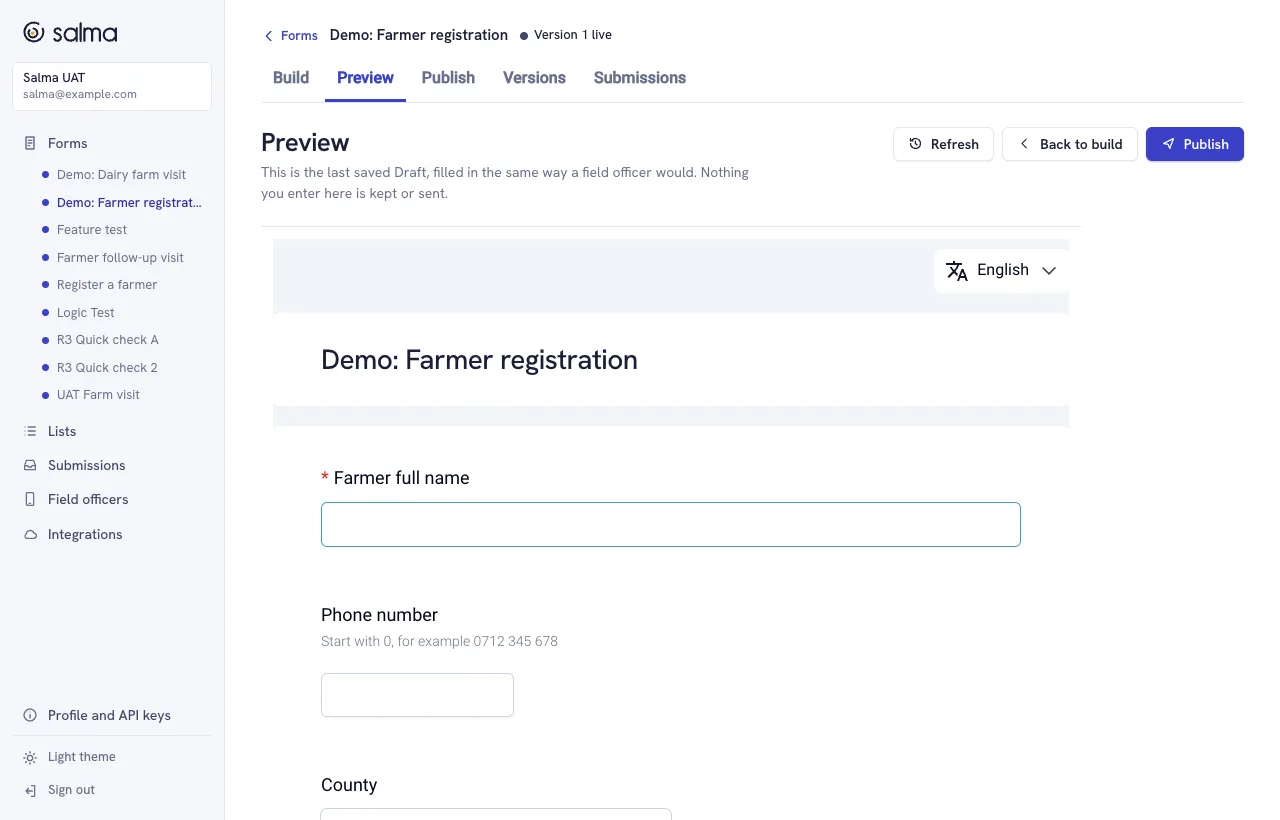
Section titled “Preview”Click Preview. The form opens the way a phone shows it. Nothing you type in the preview is kept.
Publish
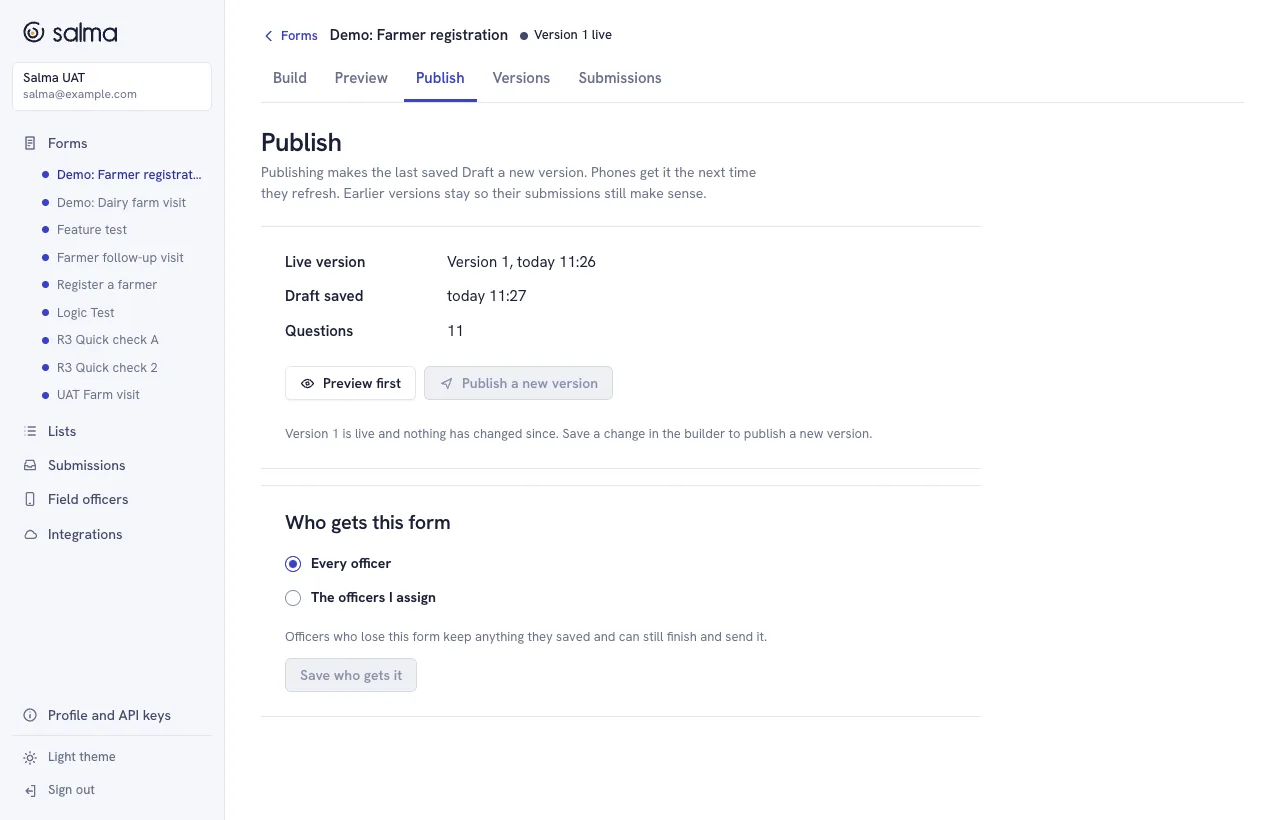
Section titled “Publish”Click Publish, then Publish version 1, or Publish a new version after a change. Publishing makes the saved Draft the version phones get. Earlier versions stay, so their submissions still make sense.
Under Who gets this form, choose Every officer or tick the officers who get it, then Save who gets it. Phones get the form the next time they refresh.
Change a published form
Section titled “Change a published form”Edit the Draft, save and publish a new version. Changing a question’s type makes it a new question with a new key; answers already sent stay under the old key.