

Set up a phone
Salma manages officers, not phones. Each officer has one page in the Console with their forms, lists, access and phones. An officer can use more than one phone.
Add an officer
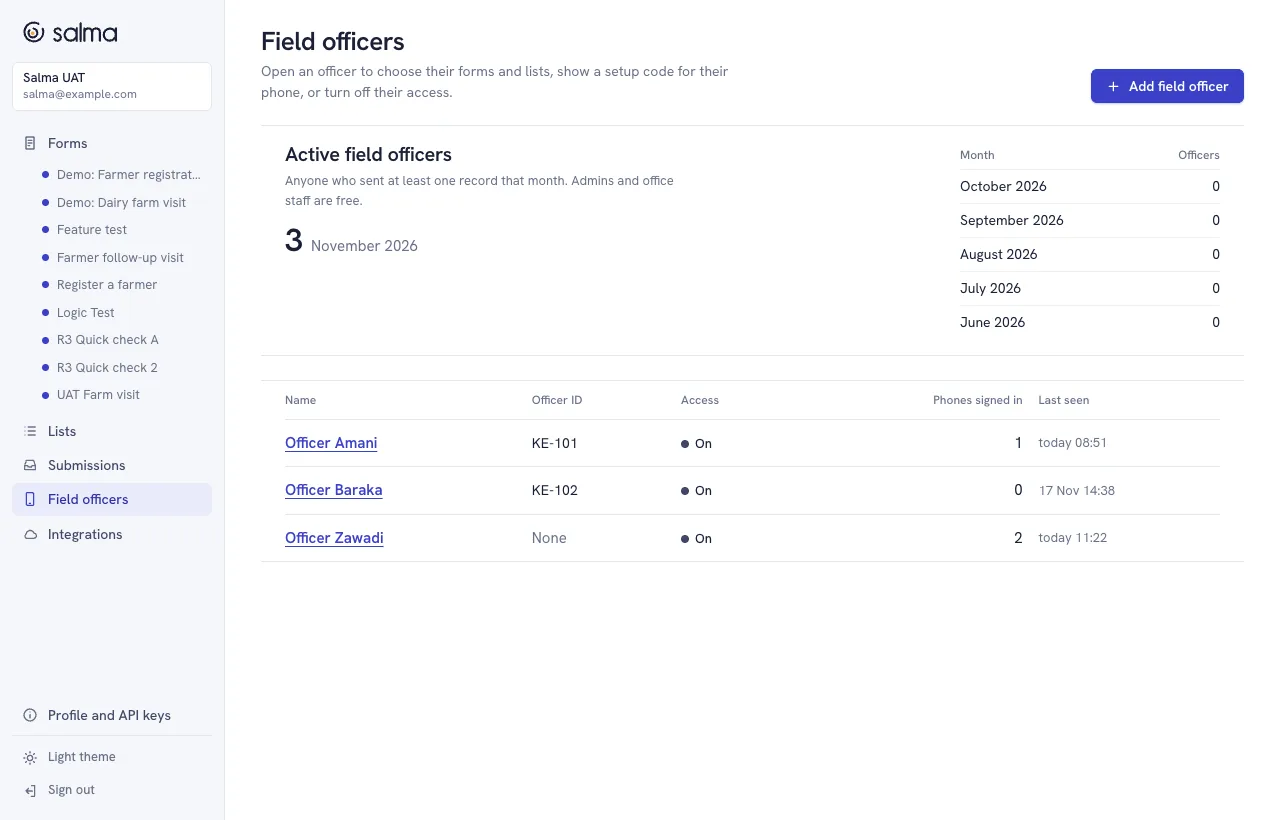
Section titled “Add an officer”Open Field officers and click Add field officer. Give a name and, if you use them, an officer ID.
Install the app
Section titled “Install the app”You need an Android phone with Android 8 or later. Your Salma contact sends you the link to install the app. If Android asks whether the browser may install apps, allow it for this install.
Sign the phone in
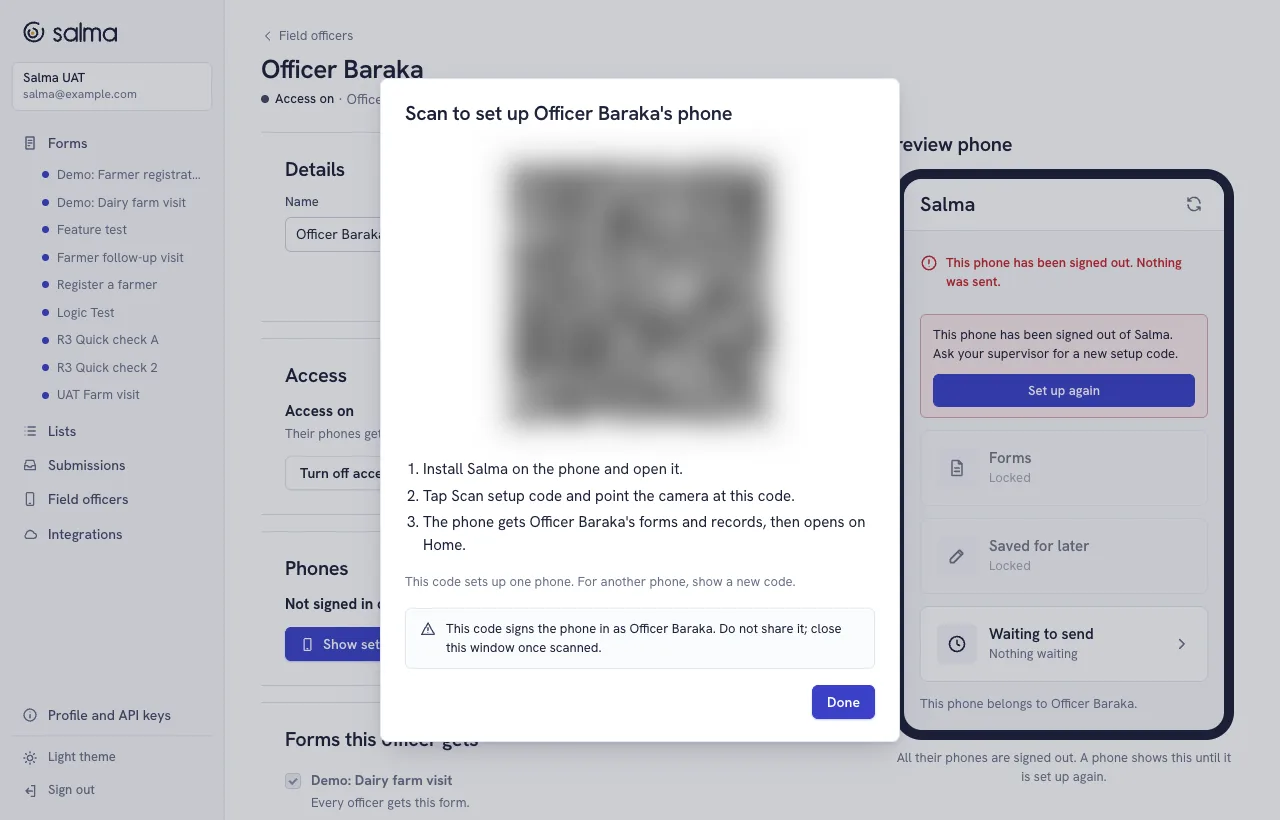
Section titled “Sign the phone in”- In the Console, open the officer and, under Phones, click Show setup code.
- On the phone, open Salma and tap Scan setup code. Allow the camera.
- Point the camera at the code. The phone gets the officer’s forms and lists, then opens on Home.
- Click Done in the Console.
One code sets up one phone. For another phone, show a new code. Do not share a code: it signs the phone in as that officer.
Choose what each officer gets
Section titled “Choose what each officer gets”On the officer’s page, tick the forms and lists they get, then save. The Preview phone shows what their phone will show after its next refresh.
Turn access off, or sign out a lost phone
Section titled “Turn access off, or sign out a lost phone”- Turn off access: the officer’s phones stop the next time they refresh or send. Their unsent visits stay on the phones. Turning access on again needs no new setup code.
- Sign out all phones: every phone signed in as that officer stops. To carry on, the officer sets up again with a new code.